How to Deploy Fortinet IPS Managed Rules for Advanced Threat Protection in AWS Network Firewall
When rolling out
AWS Network Firewall at the internet edge, one of the first practical decisions security practitioners must make is how to implement deep packet inspection without turning rule authoring and maintenance into a full‑time job. Although custom Suricata rules provide fine‑grained control, they also require constant tuning, threat research, and lifecycle management—work that can quickly slow down delivery in dynamic and fast‑moving AWS environments.
Fortinet’s Managed Rules offer a more operationally efficient approach. Backed by FortiGuard Labs threat intelligence and delivered as a native AWS Network Firewall stateful rule group, these rules allow you to enforce proven security controls without managing individual signatures. From an infrastructure perspective, they integrate cleanly into existing firewall policies and behave exactly like any other stateful rule group—no sidecar appliances, no custom update pipelines.
In this article, we will explore how
Fortinet’s Managed Rules work within AWS Network Firewall, and how to deploy them effectively in real‑world architectures. Whether you’re securing east‑west traffic between VPCs or enforcing ingress and egress controls at scale, understanding how to leverage
Fortinet’s Managed Rules can significantly strengthen your network security posture in AWS.
This article explores how to:
- Add Fortinet Managed IPS Rules via AWS Marketplace.
- Enforce real threat detection (malware, C2, exploits).
- Observe alerts + drops in firewall logs.
- Correlate partner rules with Suricata alerts.
Pre-requisites:
- Existing AWS Internet Gateway (IGW).
- Existing VPC with at least one of each of the following:
A private subnet routed to the firewall subnet.
0.0.0.0/0 → Firewall Endpoint (AWS Network Firewall)
One firewall subnet routed to the IGW.
0.0.0.0/0 → IGW
One public subnet for the IGW.
0.0.0.0/0 → IGW
- An IAM role with the following AWS-managed policies:
AWSNetworkFirewallFullAccess
AmazonVPCFullAccess
AmazonEC2FullAccess
CloudWatchLogsFullAccess
AmazonS3FullAccess
AWSMarketplaceFullAccess
- Creating VPCs, subnets, route tables, IGWs.
- Deploying AWS Network Firewall + Fortinet managed rule groups.
- Launching EC2 instances.
- Writing logs to CloudWatch & S3.
- Subscribing to AWS Marketplace security products.
Step-by-Step Instructions:
The steps below will guide you through the process of building the following architecture:
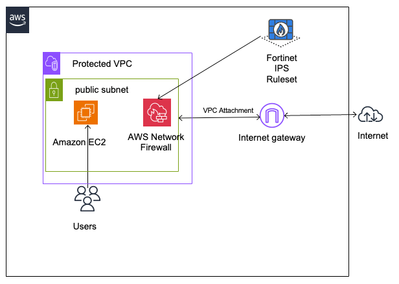
Step 1: Subscribe to Fortinet Managed IPS Rules
1. Log in to the AWS Console.
3. Choose Subscribe.
If successful, you will see this:
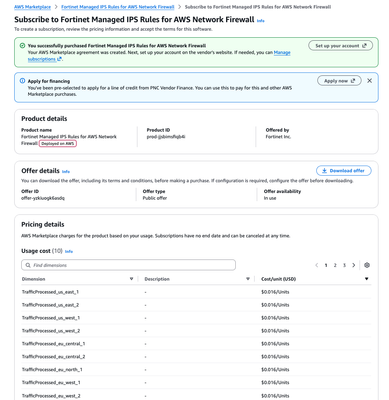
4. Select “Set up your account”.
Step 2: Create and configure AWS Network Firewall
1. You will be taken to the AWS Network Firewall. If you don’t have a firewall, you can select “Create firewall”.
2. Enter a firewall name and Description (e.g. My-new-firewall).
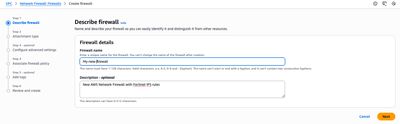
3. Select Next.
4. Choose your attachment type for the new network firewall. Attach your existing VPC, Firewall subnets, Availability Zone, and IP address type.
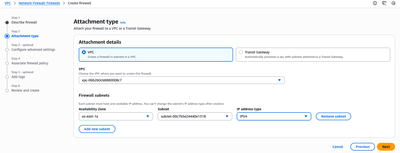
5. Select Next.
6. You can then configure advanced settings. Make sure to enable logging and destinations:
- Alerts -> CloudWatch log group (e.g. networkfirewall).
- Flow -> CloudWatch log group (e.g. vpcflowlogs).
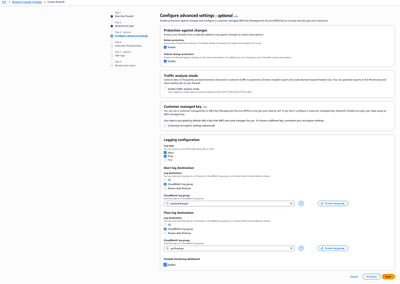
7. Choose Next. You can now associate firewall policy to your new firewall
Step 3: Associate Firewall Policy
1. Create a new firewall policy (e.g. Fortinet-IPS-Policy-01).
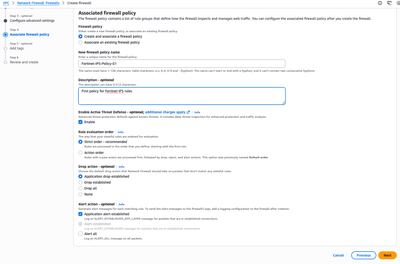
2. Select Next.
3. You can now define tags for your new network firewall.
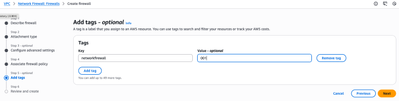
4. Select Next.
5. Review your new network firewall with the newly created policy.
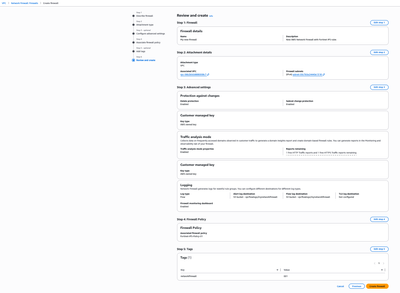
6. Select Create firewall.
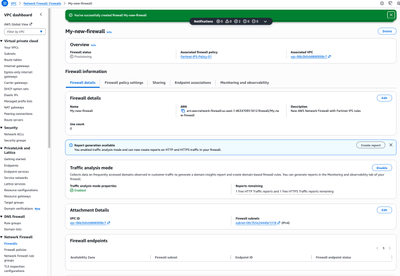
7. You should see “You’ve successfully created firewall My-new-firewall”.
Step 4: Add Fortinet’s Managed IPS Rules to Firewall Policy
If you already have an AWS Network Firewall, you can add Fortinet Managed IPS Rules for AWS Network Firewall to your policies.
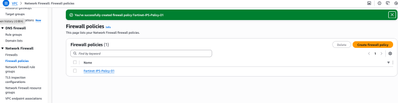
1. On the right pane, under “Network Firewall”, choose “Firewall policies”.
2. Select your newly created policy (e.g. Fortinet-IPS-Policy-01) to edit.
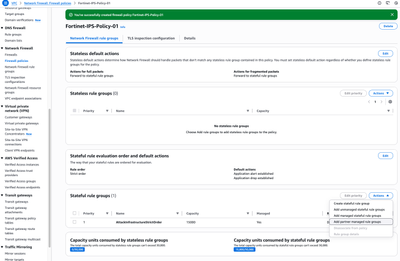
3. Select “Action: Add partner managed rule group” under “Stateful rule groups”.
4. Go to Fortinet Managed IPS Rules for AWS Network Firewall. You can select the checkbox next to your desired rule groups:
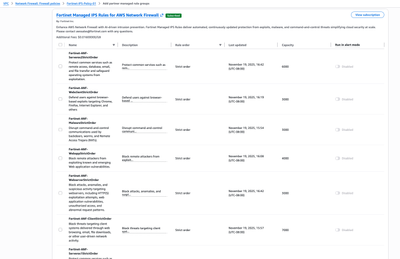
5. Toggle “Disabled” to “Enabled” on your selected rule group.
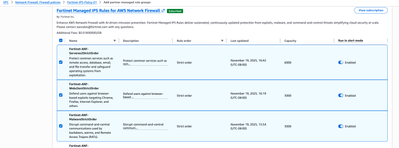
6. Select “Add to policy”.
7. You should see the rule groups successfully added to the policy.
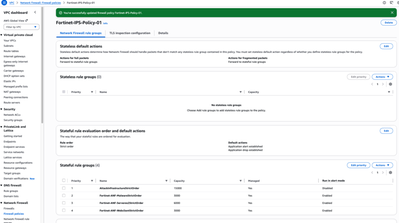
Step 5: Generate traffic that triggers the new AWS Network Firewall with Fortinet’s IPS Rules
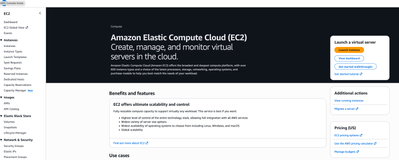
2. Select Launch instance.
3. Launch an instance with “Amazon Linux on t2.micro instance type with 64-bit (x86) Architecture”.
4. Create a new keypair.
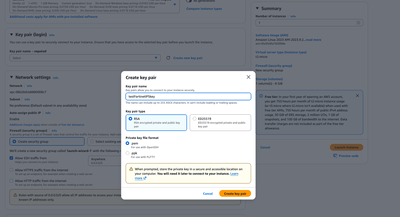
5. Make sure you select the private subnet in theVPC which the new Network Firewall is attached to.
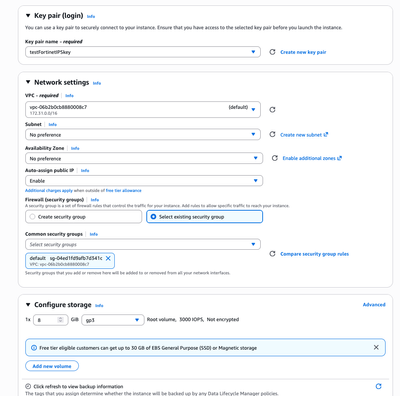
6. Select Launch instance.
7. Once the instance is launched, connect to it by selecting “Connect”.

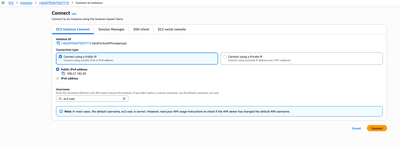
8. Select Connect.
9. On the EC2 CLI, execute this command:
curl -O http://malware.wicar.org/data/eicar.com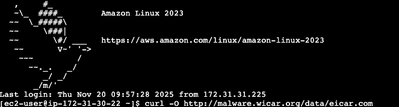
Step 6 : Check CloudWatch Logs (Partner Alerts)
Example: Fortinet Malware Alert Log
JSON

{

"timestamp": "2026-01-21T23:01:39.201Z",

"event_type": "alert",

"firewall_name": "nf-lab-fw",

"alert": {

"action": "blocked",

"signature": "ET MALWARE EICAR Test File",

"signature_id": 2024218,

"category": "Malware",

"severity": 1

},

"src_ip": "10.0.1.25",

"src_port": 52144,

"dest_ip": "93.184.216.34",

"dest_port": 80,

"proto": "TCP",

"engine": "suricata",

"rule_source": "Fortinet"

}
Key indicators:
- signature → Partner description
- category → Malware / Command‑and‑Control
- rule_source → Managed
- action → blocked
Example: C2 Domain Detection
JSON

{

"timestamp": "2026-01-21T23:02:58.883Z",

"event_type": "alert",

"alert": {

"action": "blocked",

"signature": "ET C2 Known Malicious Domain",

"signature_id": 2031450,

"category": "Command-and-Control",

"severity": 1

},

"src_ip": "10.0.2.40",

"dest_ip": "192.0.2.77",

"proto": "UDP",

"dest_port": 53،

"rule_source": "Fortinet"

}
Step 7: Verify Flow Logs Match Alerts
For the same connection, check Network Firewall Flow Logs:
JSON

{

"src_addr": "10.0.1.25",

"dest_addr": "93.184.216.34",

"dest_port": 80,

"protocol": "TCP",

"direction": "egress",

"flow_action": "drop"

}
Summary
This article has guided you through this solution which uses
AWS Network Firewall combined with
Fortinet IPS Rules to deliver robust, continuously updated threat protection for outbound traffic. All egress flows are routed through the firewall for inspection, ensuring that threats such as malware callbacks, suspicious domains, and high‑risk patterns are detected and blocked before leaving the VPC. Security teams gain full visibility through
centralized firewall logging, enabling detailed monitoring, alerting, and forensic analysis across all inspected traffic.

